
Silk Mobile
Table of Contents (Homepage)
- Overview
- Setting Up
- Getting Started
- How To
- Connecting Devices And Emulators
- Preparing Applications For Testing
- Managing Applications
- Recording Tests
- Working With Test Commands
- Adding Commands To Your Scripts
- Object Commands
- Click
- ClickCoordinate
- ClickIn
- ClickOffset
- Drag
- ElementGetProperty
- ElementGetTableRowsCount
- ElementListPick
- ElementListSelect
- ElementListVisible
- ElementScrollToTableRow
- ElementSendText
- ElementSetProperty
- ElementSwipe
- ElementSwipeWhileNotFound
- GetAllValues
- GetElementCount
- GetElementCountIn
- GetTextIn
- IsElementBlank
- IsElementFound
- IsFoundIn
- LongClick
- RunNativeAPICall
- SendWhileNotFound
- VerifyElementFound
- VerifyElementNotFound
- VerifyIn
- WaitForElement
- WaitForElementToVanish
- GetCoordinateColor
- DragDrop
- Application Commands
- Device Commands
- Web (Hybrid) Specific Commands
- Utilities Commands
- Monitoring Commands
- Configuration Commands
- ExtractLanguageFiles
- SetDefaultClickDownTime
- SetDefaultTimeOut
- SetDefaultWebView
- SetDragStartDelay
- SetInKeyDelay
- SetKeyToKeyDelay
- SetLanguage
- SetLanguagePropertiesFile
- SetShowImageInReport
- SetShowPassImageInReport
- SetShowReport
- SetSpeed
- SetThrowExceptionOnFail
- SetWebAutoScroll
- StartStepsGroup
- StopStepsGroup
- TextFilter
- Miscellaneous Commands
- Controlling Element Identification Rules
- Editing Test Objects
- Executing Test Scripts
- Report Of Executed Test
- Working From Code Environment
- Continuous Integration
- Layout Verification Tests
- Use Device Vitals Monitors
- Troubleshooting
- Terminology
Troubleshooting Android Connectivity
Are you having problems connecting your Android device to Silk Mobile ?
You can debug connectivity using the following:
Problem 1: My device's details are not shown when trying to add it to Silk Mobile
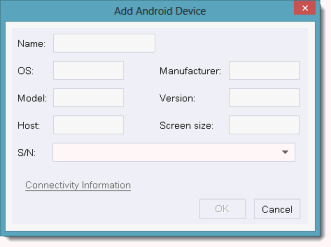
Step 1: Open your PC's Device Manager (you can find it under the control panel in your Windows PC station) - You should be able to identify your device here (usually under 'Android Phone').

Step 2: If you can't identify the device, disconnect and connect the USB cable while the Device Manager is open. The Device Manager should refresh and you should be able to identify the new device.
Step 3: If the 'Device Manager' is not refreshed, try to change the USB port which is connecting the device to your PC.Step 4: If your device is still not identified or you are getting status on the device as the 'Unknown Device' or your device is in "Error" mode, uninstall the USB driver and reinstall again per the instructions in Step 1 of the Connect Android section in this manual. Once you have reinstalled the USB driver, verify successful installation by executing the 'adb devices' command.
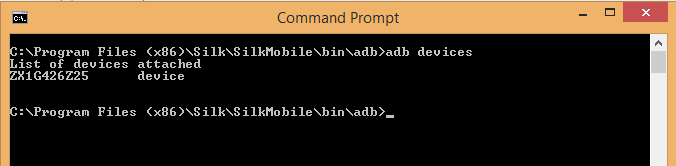
Step 5: If your device is still not identified or you are getting the 'Unknown Device' or "Error" message, verify that the device 'USB debugging' is enabled: Open 'Settings' -> 'Application' -> 'Development' - 'USB debugging' should be enabled:
Problem 2:
My device is listed in the device list in Silk Mobile , but I can't open it.
Please send the error.log located in the Silk Mobile installation directory (C:\Program Files (x86)\Silk\SilkMobile\) to supportline@microfocus.com.
Problem 3: Device status becomes Offline at random times and I cannot establish connection.
-
Change the USB cable. Try using the original USB cable. In some cases the process of connecting and disconnecting the USB cable can damage the device's connector. In this case the device will get charged as usual but can suffer from ADB instability. It is best to avoid connecting and disconnecting the USB cable from the device itself.
-
Change the PC USB port. Use USB 2.0 and not USB 3.0. If it is a desktop machine, it is better to use ports that are at the back of the machine.
-
Don't run any other softwares that access the ADB process. Indication of such issue will be more then one ADB process running in the task manager.
-
Applications like Samsung Kies or HTC Sync will try to kill the existing ADB process and use their build-in ADB. It's better to avoid using those tools and only install the USB driver.